Watch how it works
See how Cowork takes a high-level ask and turns it into a finished workstream. Research, drafts, calendar updates, and follow-ups — all in minutes
 Microsoft Adoption
 Microsoft Copilot Cowork
Copilot Cowork is an agentic system that plans, executes, and delivers work. It coordinates long-running, multi-step workflows across your apps, files, and data. Powered by Work IQ, it integrates signals from your work graph and applies task-appropriate models to produce context-aware results.
View the full Microsoft Copilot HubSee how Cowork takes a high-level ask and turns it into a finished workstream. Research, drafts, calendar updates, and follow-ups — all in minutes

Describe the outcome, like “prep me for Thursday’s client review”. Cowork plans the steps, gathers inputs, and executes across your apps.
Draft and send emails, post updates in Teams channels and chats, create HTML newsletters, and prepare polished stakeholder communications — all from a single conversation.
Create Word docs, Excel spreadsheets, PowerPoint decks, and PDFs from scratch. Edit existing files, browse your OneDrive and SharePoint, and reorganize content into new or existing folders.
Schedule meetings, resolve conflicts, protect focus time, and get pre-read briefings so you walk in with confidence.
Find documents, messages, and information across your organization. Run deep research that synthesizes multiple sources into comprehensive reports.
Schedule work on a recurring basis. Whether it’s daily briefings, weekly digests, or end-of-day wrap-ups, Cowork takes care of the follow-ups for you.
Explore what Copilot can do with our most popular prompts.
 Help rewrite
Can you help me rewrite this paragraph to make it clearer and more concise?
Explore a topicI have a topic that I’m interested in and would like to learn more. Can you walk me through the basics and help me go deeper as we talk?
Summarize your emailYou are my email analyst. Review all unread emails in my outlook inbox and summarize each on in a structured table.
Follow up on emailsPlease summarize the emails I’ve received over the past two weeks and priortize them based on urgency.
Cowork gives you a new way to approach everyday work by letting you delegate tasks while staying involved at key points along the way.
Keep reading to learn how to:
Give Cowork a task and let it handle the work from start to finish. It can take on long-running, multi-step tasks and return a completed result, not just a draft or recommendation.
Cowork supports multiple AI models and automatically chooses the right one for each task to help optimize performance and cost.
With Work IQ, the intelligence layer, Cowork also gets the context it needs to complete your task, drawing on relevant files, people, and work patterns—all within your existing Microsoft 365 security and compliance controls.
| Chat | Cowork | Agents | |
|---|---|---|---|
| Best for | Drafting, Q&A, and ideation through conversational AI | Delegating and executing long-running, multi-step work across your apps | Specialized or repeatable tasks |
| How you interact | A conversation: You steer each step from prompt to response. | An assignment: You describe the goal and check in at key milestones. | A workflow: You choose an agent built for a specific job. |
| Typical work pattern | You’re in the loop: You create the prompt, review the response, and decide what to do next. | You can step away: Cowork plans and manages work across apps, then delivers the completed result. | You run it on demand: Choose an agent designed for a specific task and use it whenever you need it. |
Ask Cowork to review your week and recommend calendar changes for you to approve:
Your calendar provides the context Cowork needs, and you stay in control by approving changes before they’re made.
Example prompt:
“Review my calendar for next week. Flag any conflicts, double-bookings, or meetings I’m only optionally required for. Propose declines or reschedules for any meetings that aren’t tied to my priority workstreams or upcoming deadlines and suggest where I could block focus time. Walk me through each change one at a time and only act after I approve.”
Use Cowork to identify where action is needed and recommend next steps:
Pipeline reviews involve recurring work across apps, making them well suited for delegation. Because the work can directly affect customers, you can review and approve recommended actions before Cowork moves forward.
Delegate onboarding logistics to Cowork and help your new hire get off to a smooth start:
Onboarding requires coordinating many moving pieces. With Cowork, you don’t have to manage every task, resource, and scheduling detail one by one.
Clear, specific instructions help Cowork deliver better results. In your prompts, include what you want to accomplish, the information and context Cowork needs to complete the task, any requirements it should follow, and the actions you want to approve. Consider these five elements when writing your prompt:
Instead of:
“Help me prepare for my team retreat next week.”
Try:
“Prepare a briefing pack and draft agenda for the June 12 team retreat. (Outcome) Refer to the meeting invite, the three pre-reads attached to it, and emails about the retreat from the past two weeks. (Inputs) Save the briefing pack as a Word document to my OneDrive Team Retreat folder, and email the draft agenda to my direct reports for feedback. (Final result) Keep the briefing pack to one page and don’t include external attendees on the email. (Constraints) Default — review the email before sending.” (Approvals)
Task Packs provide real-world examples of complete Cowork workflows for common roles and scenarios, including ways to incorporate plugins you may already have. See how Cowork handles different types of tasks, then adapt the examples to your own needs.
Explore what Copilot can do with our most popular prompts.
Pipeline reviewHelp me work my pipeline. Please review my open opportunities…
New hire onboardingHelp me onboard my new hire. Please review their first two weeks…
Prep for a meeting“Help me prepare for an upcoming meeting. Please review my…
Organize my inbox“Help me organize my inbox. Please review my email from Outlook…
Microsoft Copilot Cowork requires a Microsoft Copilot license and is available in Copilot tenants. IT administrators control who can access it and can deploy and pin it using standard Copilot governance tools.
If Cowork is turned on for you, select the Cowork toggle in Microsoft Copilot to jump in. Don’t see the toggle at all? Contact your IT admin to get access.
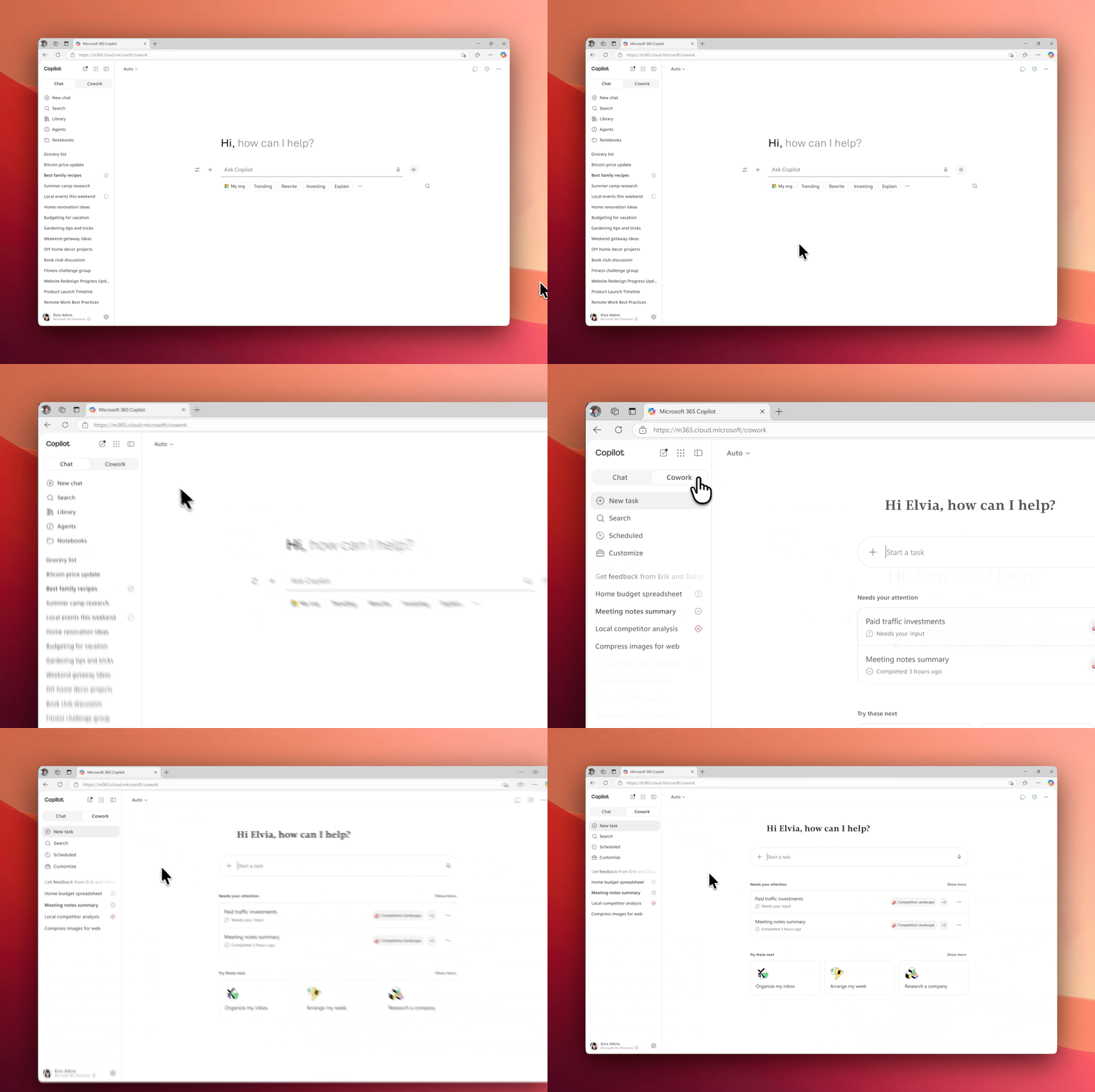
The Cowork toggle sits at the top of your left navigation in Microsoft 365 Copilot, next to Home. Select Cowork to switch into the experience.
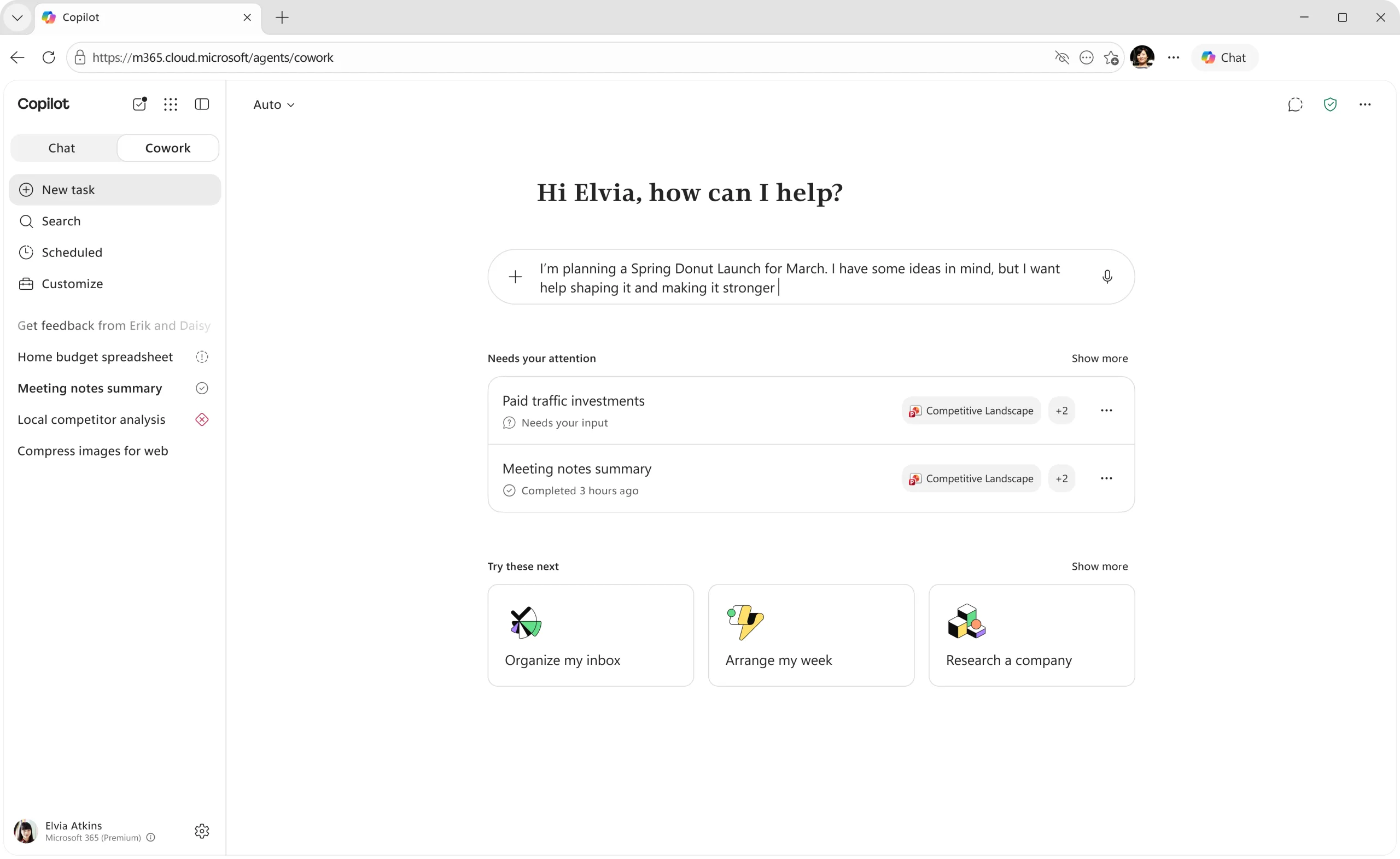
Learn moreSelecting it opens your personalized homepage with suggested tasks tailored to your recent work.
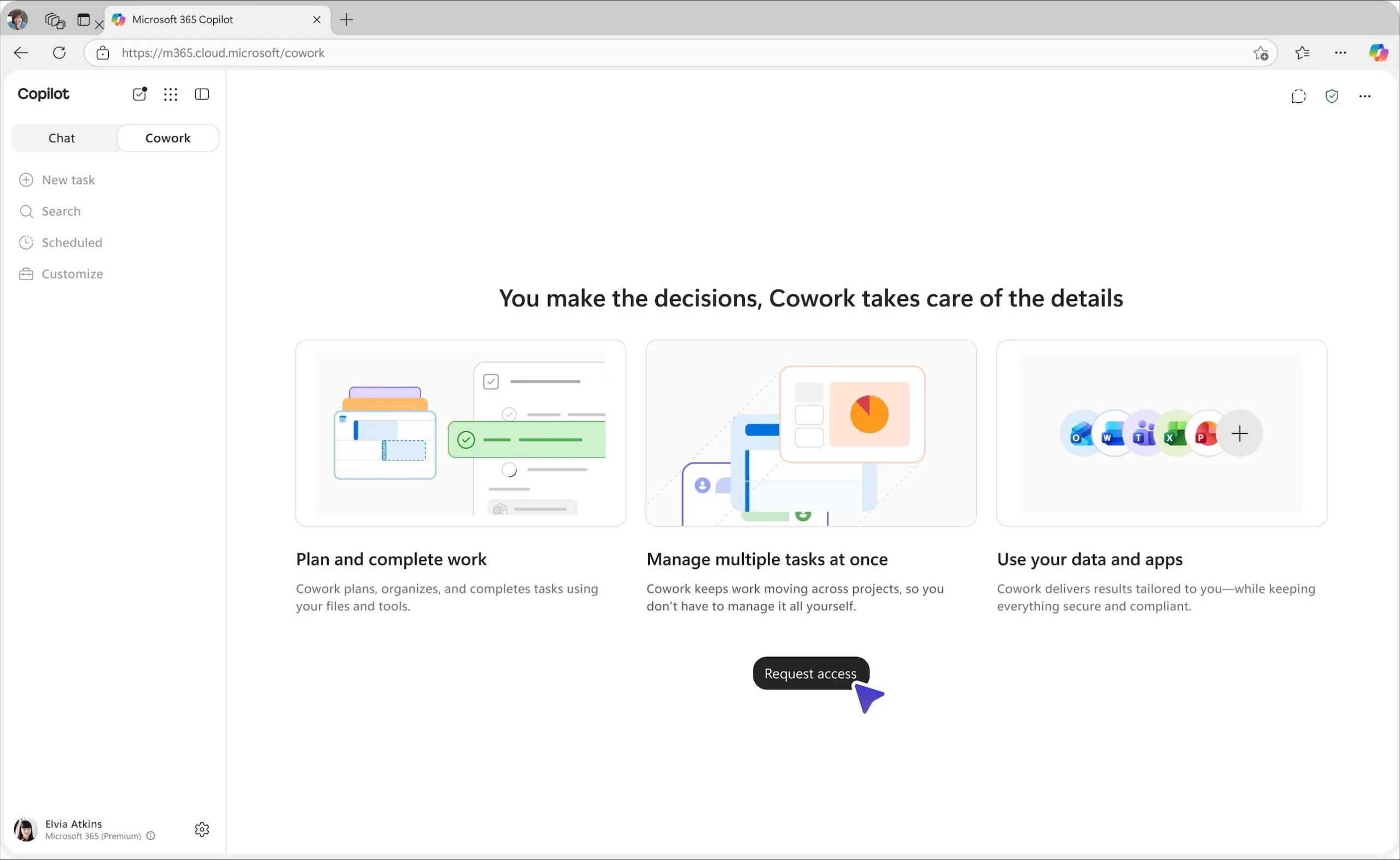
Learn moreIf you can see the Cowork toggle, but it isn't switched on for you yet, selecting it opens a brief overview of what Cowork does with a one-click Request access button. Once your request is approved, you're ready to go.
Learn moreWhen you reach your usage limit, you can request more credits by clicking on ``Request more``. Once your admin approves, you're notified both in the product and by email.
Learn moreWhere developers connect, learn, and build solutions on Microsoft platforms.
Get connectedFind interest-based skilling playlists.
Advanced resources for IT Pros and admins, Champions and Adoption Managers, and Leadership.
Explore our collection of skilling courses for Copilot and agents for IT Pros and Developers.
Your role as an AI Champion is to help teammates understand where Cowork fits into their work, build confidence using it, and turn early experimentation into repeatable ways of working.
Keep reading to learn how to:
Learn how to identify starter scenarios, run working sessions, troubleshoot issues, and share examples that help teammates build confidence and make Cowork part of their everyday workflows.
Objective: Give teammates the context and support they need to start using Cowork confidently.
Objective: Build momentum by reinforcing what works and encouraging teammates to keep using Cowork.
Objective: Capture what’s working, learn where teammates need more support, and share early successes with your team and leaders.
Objective: Stay connected to other Champions and Microsoft experts to keep learning and bring new ideas back to your team.
Explore what Copilot can do with our most popular prompts.
Pipeline reviewHelp me work my pipeline. Please review my open opportunities…
New hire onboardingHelp me onboard my new hire. Please review their first two weeks…
Prep for a meeting“Help me prepare for an upcoming meeting. Please review my…
Organize my inbox“Help me organize my inbox. Please review my email from Outlook…
Where developers connect, learn, and build solutions on Microsoft platforms.
Get connectedFind interest-based skilling playlists.
Advanced resources for IT Pros and admins, Champions and Adoption Managers, and Leadership.
Explore our collection of skilling courses for Copilot and agents for IT Pros and Developers.
As an AI Leader, your role is to set the direction and create the conditions for teams to use Cowork effectively.
Keep reading to learn how to:
Before expanding Cowork across your organization, consider how it fits within your existing governance, budget, tools, and AI strategy.
Adopting Cowork successfully depends on a few strategic decisions about where to focus, how to govern use, and what resources you’ll need.
star
Partner with your AI Council and other stakeholders to identify the roles and teams where Cowork can deliver the highest ROI. Start with a focused group, measure the impact, and use what you learn to inform broader adoption.
shield
Confirm access, policies, and governance with IT and security teams before enabling Cowork.
lightbulb
Collaborate with your AI Council to determine what kinds of tasks are appropriate to delegate to Cowork, what guardrails should apply, and how you’ll evaluate results.
money
Cowork usage is billed through Copilot Credits. Work with IT and finance to plan for costs, determine who needs access, and monitor usage as adoption grows.
How you lead can shape how teams adopt and use Cowork across your organization.
Discover how Copilot Cowork pricing works, how to estimate your usage, and what controls are available to manage costs.
Watch Cowork take on delegated tasks from start to finish.
Explore what Copilot can do with our most popular prompts.
Pipeline reviewHelp me work my pipeline. Please review my open opportunities…
New hire onboardingHelp me onboard my new hire. Please review their first two weeks…
Prep for a meeting“Help me prepare for an upcoming meeting. Please review my…
Organize my inbox“Help me organize my inbox. Please review my email from Outlook…
Where developers connect, learn, and build solutions on Microsoft platforms.
Get connectedFind interest-based skilling playlists.
Advanced resources for IT Pros and admins, Champions and Adoption Managers, and Leadership.
Explore our collection of skilling courses for Copilot and agents for IT Pros and Developers.
As an IT administrator, you’re responsible for preparing your environment, managing access and costs, establishing governance, and helping your organization adopt Cowork safely.
You don’t need to create a separate security model for Cowork. It works within your existing Microsoft 365 environment and acts on behalf of the user, following the permissions, sensitivity labels, and policies you already manage.
To use Cowork, your organization needs a Microsoft 365 Copilot license and credit-based billing. Once those requirements are in place, you can choose who has access to Cowork and make it available to eligible users.
Getting started:
Tip: Work with your AI lead and finance partner to define the scope of your rollout. Use the cost estimator to estimate credit usage and plan your budget.
With support for multiple AI models, Cowork automatically selects the most appropriate model for each step of a task, helping users get better results without interrupting their workflow.
Anthropic models require tenant-level enablement. If your organization plans to use them with Cowork, verify that they’re enabled in your tenant. Learn more about managing Anthropic models.
Cowork uses Copilot Credits, a shared billing currency that meters AI usage across Copilot services and agents. Copilot Credits are managed through spending policies, monthly spending limits, and optional per-user limits. The number of Credits a task uses depends on factors such as the AI model, tokens processed, connected data and tools, and safety and policy checks.
The right billing model depends on your rollout strategy. Most organizations use a combination of prepaid and pay-as-you-go Copilot Credits.
| Prepaid Copilot Credits | Pay-as-you-go Copilot Credits | |
|---|---|---|
| Best for | Predictable, committed usage | Flexibility to scale up or down |
| Term | Annual | No commitment |
| Cost | Lowest per-credit cost | $0.01 USD per credit |
When to use each billing model:
Configure credit-based billing in the Microsoft 365 admin center. You’ll create spending policies, assign users or groups, choose a billing method, set budgets and alerts, and review your configuration before activating it.
Before you configure budgets and spending limits, estimate expected usage to create budgets that reflect real-world usage instead of arbitrary caps. Follow these steps or use the Customer Cowork Estimator to calculate your initial budget:
Here’s how to use Cost Management to address common spending challenges:
Before launching a pilot, ensure that your tenant is ready for Cowork.
Objective: Identify the users who will participate in your pilot.
Objective: Make Cowork available to your pilot group with the right controls from day one.
Objective: Configure Copilot Credits, budgets, and spending controls.
Objective: Use early results to inform broader deployment.
Objective: Monitor usage patterns, catch problems early, and build a repeatable governance rhythm.
Cost Management in the admin center gives you credit-usage visibility from day one, including:
Pair the Cost Management dashboard with the Microsoft Purview audit log to review Cowork actions alongside other activity in your Microsoft 365 environment.
Service health reviews (SHRs) bring the implementation team and business stakeholders together to review insights from AI transformation projects. During these check-ins, assess usage patterns, challenges, and success stories using data from the Copilot dashboard. Refine your deployment and adoption plans based on those insights.
The same commitments and controls that help protect your data in Microsoft 365 apply to Cowork:
Explore what Copilot can do with our most popular prompts.
Pipeline reviewHelp me work my pipeline. Please review my open opportunities…
New hire onboardingHelp me onboard my new hire. Please review their first two weeks…
Prep for a meeting“Help me prepare for an upcoming meeting. Please review my…
Organize my inbox“Help me organize my inbox. Please review my email from Outlook…
Where developers connect, learn, and build solutions on Microsoft platforms.
Get connectedFind interest-based skilling playlists.
Advanced resources for IT Pros and admins, Champions and Adoption Managers, and Leadership.
Explore our collection of skilling courses for Copilot and agents for IT Pros and Developers.
Funding variable AI work is a new discipline for most finance organizations, and adoption is accelerating. The FinOps Foundation reports that 98% of organizations now manage AI spend, up from 31% two years prior, and that AI cost management is the top skill their teams need to develop.
As a finance leader, you already fund Microsoft 365 Copilot. Cowork is your next decision. That changes what you fund and how it’s priced, moving from a fixed per-seat license to a variable investment that scales with the work you run. Funding Cowork becomes a capital-allocation decision about which work earns the investment.
| Copilot | Cowork | |
|---|---|---|
| What you fund | AI capability across the organization | Execution of the work |
| The cost model | Fixed, per seat | Variable, by usage |
| How spend scales | With headcount | With the work you run |
It executes multi-step work across Microsoft 365, completing workflows that coordinate across tools, data, and teams. A team assigns an outcome, and Cowork operates across Microsoft 365 connected systems and your business data, and returns a completed result.
Examples include:
Microsoft 365 Copilot licensing remains the foundation. Cowork introduces usage-based spend through Copilot Credits. Credit spend varies based on the volume and complexity of workflows run through Cowork, giving you a more direct connection between spend and operational activity. Business units of similar size can show different spend patterns based on how they use Cowork.
A workflow’s cost scales with its complexity, the systems and data it touches, and the actions it takes. Heavier reasoning and higher-quality outputs draw on more capable models and cost more.
Cowork is metered in Copilot Credits, a single pooled currency controlled at the tenant level. Cost scales with the work performed. This gives you direct control over where AI investment goes and what it returns. Credits are funded two ways, and most organizations use both.
AI spend becomes a managed investment that scales with results. Capacity can be allocated, capped, and redirected. Budgets and limits are set centrally, keeping consumption visible and controlled.
| Prepaid | Pay-as-you-go | |
|---|---|---|
| Best for | Predictable, committed usage | Flexibility to scale up or down |
| Term | Lowest per-credit cost | $0.01 USD per credit |
| Cost | Sets your budgeted baseline | Absorbs pilots, spikes, and seasonality |
| Role | Sets your budgeted baseline | Absorbs pilots, spikes, and seasonality |
Cowork spend aligns to usage and is managed in the Microsoft 365 admin center. That shifts budgeting from headcount to workflows. Investment is defined by business scenarios, allocated capacity, and how usage is allowed to expand.
You set budget, prioritization, and guardrails at the executive level. Those decisions are implemented through group-level access, credit allocation, and billing policies that control Cowork use. Budgets, limits, and alerts enforce those decisions. Manage and adjust spend with metered usage and real time visibility.
Cowork usage is visible across the organization at the enterprise, business unit, and user level. This provides a clear view of consumption and how it evolves over time. Because usage is metered and observable, spend can be traced to the team or user. This ties cost to actual usage.
At the leadership level, it shows where investment is concentrated, how spend aligns to teams and priorities, and where spend may expand.
For a more detailed overview on cost management, read the e-book: A New Model for AI Spend
This is a shared responsibility between finance and IT. Finance sets the priorities, budgets, and outcomes. IT implements those decisions through policy, execution, and ongoing reporting. Cowork spend reflects how usage-based investment is allocated across the enterprise.
The strongest workflows:
These are the scenarios where Cowork, operating across Microsoft 365, executes multi-step work and returns outputs that can be governed, reused, and evaluated against business priorities.
Every workflow is an investment decision. Concentrate funding on the workflows that create the most value. Use data to decide which ones qualify before spend scales.
A defined baseline gives leaders the data to make that decision. This includes:
This creates a clear, data-driven basis for deciding whether a workflow is worth investment.
Forrester’s commissioned Total Economic Impact™ Of Microsoft 365 Copilot study projects 116% ROI and $19.7M NPV* for a composite enterprise on Microsoft 365 Copilot, and early adopters are scaling on those results: Lloyds Banking Group (30,000 licenses, 93% daily usage) and Allegis Group (150,000 hours and $1.5M saved).
*These reflect per-seat Microsoft 365 Copilot, not Cowork usage; Cowork-specific ROI will be quantified once the ROI Assessment Tool and ~90 days of data are available.
Usage data shows which workflows are running, how often they run, and where consumption is concentrated. Outcome signals show whether those workflows produce results. As Cowork scales, funding decisions move from estimates to observed performance. Together, those signals help finance leaders determine where to expand investment, where to refine scope, and where to constrain usage.
Explore what Copilot can do with our most popular prompts.
Pipeline reviewHelp me work my pipeline. Please review my open opportunities…
New hire onboardingHelp me onboard my new hire. Please review their first two weeks…
Prep for a meeting“Help me prepare for an upcoming meeting. Please review my…
Organize my inbox“Help me organize my inbox. Please review my email from Outlook…
Microsoft 365 Copilot Cowork requires a Microsoft 365 Copilot license and is available in Copilot tenants. IT administrators control who can access it and can deploy and pin it using standard Copilot governance tools.
If Cowork is turned on for you, select the Cowork toggle in Microsoft 365 Copilot to jump in. Don’t see the toggle at all? Contact your IT admin to get access.
The Cowork toggle sits at the top of your left navigation in Microsoft 365 Copilot, next to Home. Select Cowork to switch into the experience.
Learn moreSelecting it opens your personalized homepage with suggested tasks tailored to your recent work.
Learn moreIf you can see the Cowork toggle, but it isn't switched on for you yet, selecting it opens a brief overview of what Cowork does with a one-click Request access button. Once your request is approved, you're ready to go.
Learn moreWhen you reach your usage limit, you can request more credits by clicking on ``Request more``. Once your admin approves, you're notified both in the product and by email.
Learn moreWhere developers connect, learn, and build solutions on Microsoft platforms.
Get connectedFind interest-based skilling playlists.
Advanced resources for IT Pros and admins, Champions and Adoption Managers, and Leadership.
Explore our collection of skilling courses for Copilot and agents for IT Pros and Developers.